LATEST UPDATES
Showing posts with label Basic 3D Surfaces. Show all posts

Thursday, 12 February 2015

Basic Mesh Commands

1. Click        the 3D Modeling drop down option from the solids
2. Click        the mesh tab.
3. Click        the primitives panal
4. Click        the primitives drop-down


Mesh Primitive Options
The following settings can be adjusted for mesh primitives.


Mesh Box

1. Choose     MESH BOX from the primitives panal
                      Command: mesh
                      Current smoothness level is set to: 0
                      Enter an option [Box/Cone/Cylinder/Pyramid/Sphere/Wedges/Torus/SEttings]<Box>: BOX
                     Specify first corner or [Center]: Pick point
                     Specify other corner or [Cube/Length]: @4,2
                     Specify height or [2point]: 


Mesh Cone

1. Choose     MESH BOX from the primitives panal
                      Command: mesh
                      Current smoothness level is set to: 0
                      Enter an option [Box/Cone/Cylinder/Pyramid/Sphere/Wedges/Torus/SEttings]<Box>: CONE
                    Specify center point of base or [3P/2P/TTR/Elliptical]: Pick point
                    Specify base radius or [Diameter]<1.500>: 2
                    Specify height or [2point/Axis end point/Top radius]<2.000>: 


Mesh Cylinder

1. Choose     MESH CYLENDER from the primitives panal
                      Command: mesh
                      Current smoothness level is set to: 0
                      Enter an option [Box/Cone/Cylinder/Pyramid/Sphere/Wedges/Torus/SEttings]<Box>: CYLINDER
                    Specify center point of base or [3P/2P/TTR/Elliptical]: Pick point
                    Specify base radius or [Diameter]<1.500>: 2
                   Specify height or [2point/Axis end point]<2.000>: 6 


Mesh Pyramid

1. Choose     MESH PYRAMID from the primitives panal
                     Command: mesh
                     Current smoothness level is set to: 0
                     Enter an option [Box/Cone/Cylinder/Pyramid/Sphere/Wedges/Torus/SEttings]<Box>: PYRAMID
                    Specify center point of base or [Edge/Sides]: Pick point
                   Specify base radius or [Inscribed]<1.500>: 2
                   Specify height or [2point/Axis end point/Top radius]<8.000>: 5 


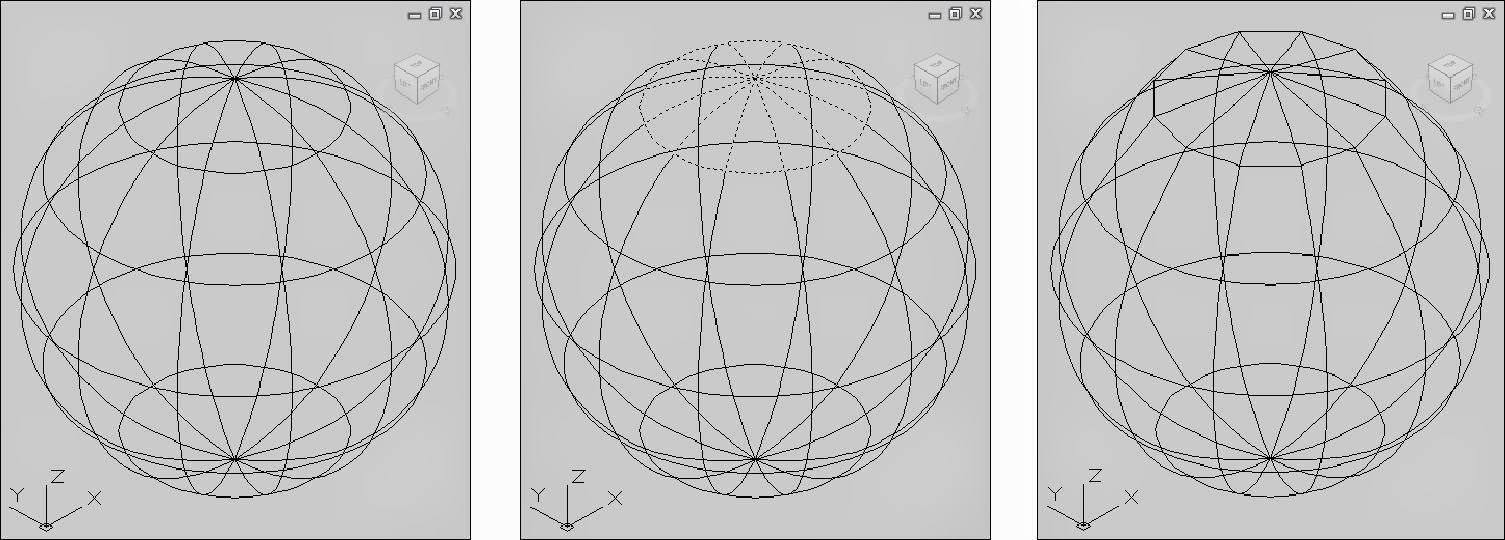
Mesh Sphere

1. Choose     MESH SPHERE from the primitives panal
                      Command: mesh
                      Current smoothness level is set to: 0
                     Enter an option [Box/Cone/Cylinder/Pyramid/Sphere/Wedges/Torus/SEttings]<Box>: SPHERE
                    Specify center point or [3P/2P/Ttr]: Pick point
                    Specify base radius or [Diameter]<2.500>: 3


Mesh Wedge

1. Choose     MESH WEDGE from the primitives panal
                      Command: mesh
                      Current smoothness level is set to: 0
                     Enter an option [Box/Cone/Cylinder/Pyramid/Sphere/Wedges/Torus/SEttings]<Box>: WEDGE
                    Specify first corner or [Center]: Pick point
                    Specify other corner or [Cube/Length]: @5,3
                   Specify height or [2point]<4.000>: 3 


Mesh Torus

1. Choose     MESH TORUS from the primitives panal
                      Command: mesh
                      Current smoothness level is set to: 0
                      Enter an option [Box/Cone/Cylinder/Pyramid/Sphere/Wedges/Torus/SEttings]<Box>: TORUS
                     Specify center point or [3P/2P/Ttr]: Pick point
                     Specify radious or [Diameter]: 5
                     Tube radius or [2point/Diameter]: 1 


Mesh Tesselations

By default, new mesh primitives are created with no smoothness. To change the default smoothness, enter mesh at the command prompt. Specify the settings option before you specify the type of mesh primitive you want to create.

1. Type          MESH at the command prompt
                       Command: mesh
                       Enter an option [Box/Cone/Cylinder/Pyramid/Sphere/Wedge/Torus/SEttings]<Box>: SE
                       Specify level of smoothness or [Tessellation]<0>: 3
                       Enter an option [Box/Cone/Cylinder/Pyramid/Sphere/Wedge/Torus/SEttings]<Box>: BOX
                       Specify first corner or [Center]: Pick point
                       Specify other corner or [Cube/Length]: @5,5
                       Specify height or [2point]<3.000>: 5


Mesh Smooth

Converts 3D faces (3DFACE) and legacy polygonal and polyface meshes (from AutoCAD 2009 and earlier). You can also convert 2D objects such as regions and closed polylines. The default mesh settings are defined in the Mesh Tessellation Option dialog box. The level of smoothness upon conversion depends on the mesh type setting in this dialogbox. If the mesh type is not set to be optimized, the converted objects is not smoothed.

1. Type            MESHSMOOTH at the command prompt
                         Command: meshsmooth
                         Select mesh object to convert: Pick objects
                        Select mesh object to convert: PRESS ENTER
2. Click           Create mesh


              2D Polyline before MESHSMOOTH                           2D Polyline after MESHSMOOTH


Smooth and Refine Meshes

The following commands control the smoothness of mesh objects.


Meshsmoothmore
Increases the level of smoothness for mesh objects by one level.

1. Type     MESHSMOOTHMORE at the command prompt
                 Command: meshsmoothmore
                 Select mesh objects to increase the smoothness level: Pick objects  

               Mesh before smooth increase                                      Mesh after smooth increase

Meshsmoothless
Decreases the level of smoothness for mesh objects by one level.

1. Type     MESHSMOOTHLESS at the command prompt
                  Command: meshsmoothless
                 Select mesh objects to decrease the smoothness level: Pick objects    

               Mesh before smooth decrease                                     Mesh after smooth decrease

Meshsmoothrefine
Multiplies the number of faces in selected mesh objects or faces.

1. Type     MESHREFINE at the command prompt
                 Command: meshrefine
                 Select mesh object or face subobjects to refine: Pick objects
                Select mesh object or face subobjects to refine: 1 object found ENTER

                                                                  Mesh refine before

                                                                 
                                                                     Mesh refine after


Add and Remove Mesh Creases

Meshcrease
Sharpens the edges of selected mesh subobjects.

1. Type     MESHCREASE at the command prompt
                 Command: meshcrease
                  Select mesh objects to crease: select objects
                  Specify crease value [Always]<Always>: ENTER

            Before crease                                   Selected objects                           After crease

TIPS:

Crease Value:
Sets highest smoothing level at which the crease is retained. If the smoothing level exceeds this value, the crease is also smoothed. Enter a value of '0' to remove an existing crease.

Always:
Specifies that the crease is always retained, even if the object or subobject is smoothed or refined. A crease value of -1 is the same as always.


Meshuncrease
Removes the crease from selected mesh faces, edges, or vertices.

1. Type     MESHUNCREASE at the command prompt
                 Command: meshuncrease
                 Select crease to remove: select objects
                 Select crease to remove: ENTER

          Before uncrease                              Selected objects                          After uncrease


Designed By Blogger Templates