LATEST UPDATES
Showing posts with label Modifying Solid Faces. Show all posts

Tuesday, 27 January 2015

Extrude Face

  1. Choose                Modify, Solid Editing, Extrude Face                                                                                  NOTE: Must be a solid to extrude the face.
  2. Choose                A face to extrude. If we choose more than one face, hold the SHIFT key to deselect unwanted faces.     
  3. Press                    ENTER.
  4. Specify                 height of extrusion or [path]: 20
  5. Specify                 angel of taper  for extrusion <0>: 45 (Optional)
Select face

Extruded Face

Taper Face

  1. Choose                     Modify, Solid Editing, Taper face
  2. Choose                     a face(s) to taper. If you choose more than one face, hold the SHIFT key to deselect unwanted faces.
  3. Press                        ENTER.
  4. Specify                     the base point: pick the back left corner.
  5. Specify                     another point along the axis of tapering: pick point
  6. Specify                     the taper angle: 45
           solid                         validation started. solid validation completed.


Before Taper

After Taper


Delete Face

  1. Choose            Modify, Solid Editing, Delete face
  2. Choose            a face to delete. If you choose more than one face, hold the SHIFT key to deselect unwanted faces. 
  3. Press                ENTER.
  4. Choose             the face to delete.

Copy Face

  1. Choose                   Modify, Solid Editing, Copy face
  2. Choose                   a face to copy. If you choose more than one face, hold the SHIFT key to deselect unwanted faces.           
  3. Press                      ENTER.
  4. Pick                        the solid face to copy.
  5. Pick                        a new location.

Monday, 26 January 2015

Color Face

  1. Choose           Modify, Solid Editing, Color face
  2. Choose           a face to change the color of it. hold the SHIFT key to select /deselect faces
  3. Press               ENTER
  4. Choose            a color to change the face to.

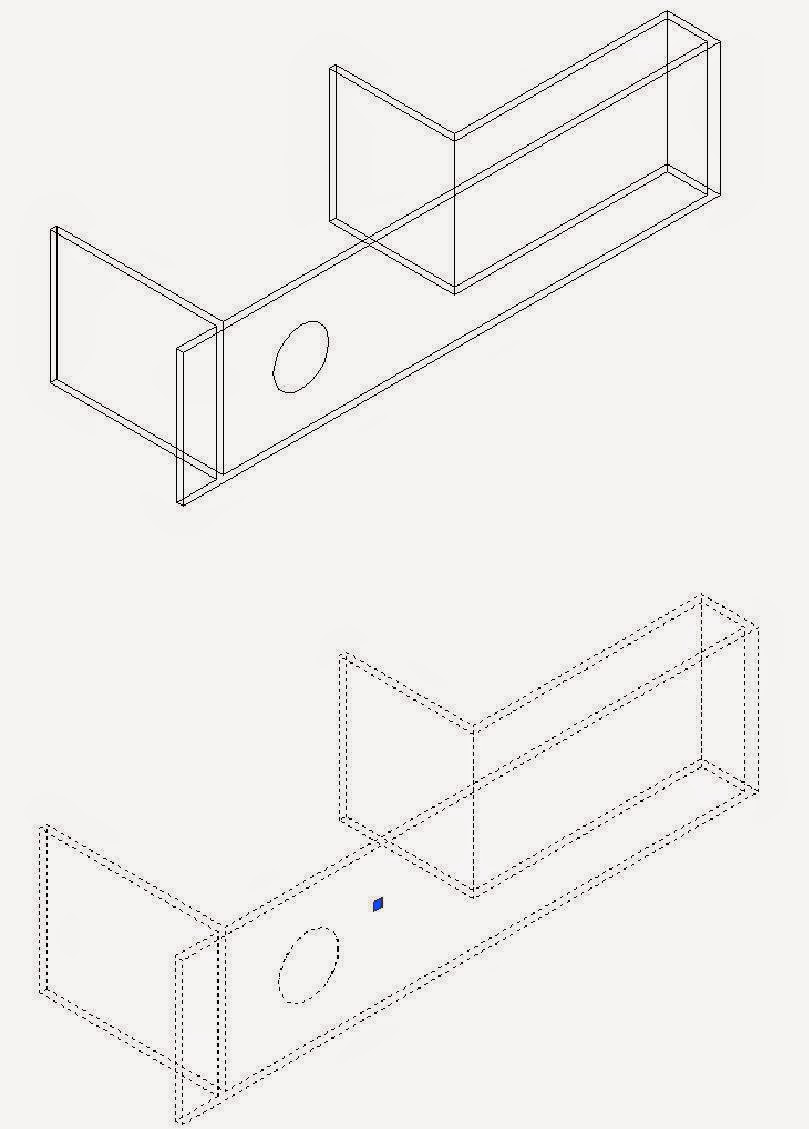
Imprint

             Imprints an object on the selected solid. The object to be imprinted must interest one or more faces on the selected solid in order for imprinting to be successful.Imprinting is limited to the following objects: arcs, circles, lines, 2D and 3D polylines, ellipses, splines, regions, bodies, and 3D solids.

  1. Extrude         objects (i.e. walls ) to create a solid objects.
  2. Change          the UCS and draw an object on a face of one of the walls.
  3. Choose          Modify, Solid Editing, Imprint
  4. Select            a 3D solid: pick solid
  5. Select            an object to imprint: pick circle
  6. Delete           the source object Y


Extrude Imprint

1.
Choose
Modify, Solid Editing, Extrude Faces.
2.
Select
the circle that was imprinted in 15.6.
3.
Deselect
any unwanted faces.
4.
Type
  8 as the height of extrusion (or desiredheight).


Shell Command

            You can create a shell or a hollow thin wall with a specific thickness from your 3D solid object. AUTOCAD creates new faces by offsetting existing ones inside or outside their original positions. AutoCAD treats continously tangent faces as single faces when offsetting.

  1. Choose           Modify, Solid Editing, Shell
  2. Select             a 3D solid: pick solid
  3. Remove         faces or [Undo/Add/All]: enter
  4. Enter             the shell offset distance: 0.5


Designed By Blogger Templates